
Check the law first. Central law passed in 2025 prohibits offering online money games in India, and several states ban them too. Read Is CWINZ legal in India? before you sign up.
Before you register
Have these ready. All of them are asked for in the form:
- An e-mail address only you use. It must be one you have never registered with CWINZ before. It is your sign-in identifier and the route for password recovery.
- Your Indian mobile number (+91), on a SIM in your own name if possible.
- Your legal first and last name, exactly as on the ID you will upload later.
- Age 18 or over. You confirm this in the declaration, and it is checked at verification.
- One account per person. Duplicate accounts break the terms you accept.
CWINZ registration at a glance
Selecting the yellow Register button opens a window headed "New member? Ready to win? Just 2 steps away". Required fields are marked with an asterisk (*).
- Select RegisterYellow button at the top right of every page on cwinzindia.com. See domain checks.
- Step 1: login detailsUsername, e-mail and password. Then select Next.
- Step 2: about youName, currency, country, phone number and an optional promo code.
- Accept and RegisterRead and tick the declaration, then select Register.
Filling in the form takes about 30 seconds. Allow a little extra time to read the declaration and the terms, especially the bonus conditions.
Registration step 1: your login details
The first screen is titled "Registration step 1" and has three required fields:
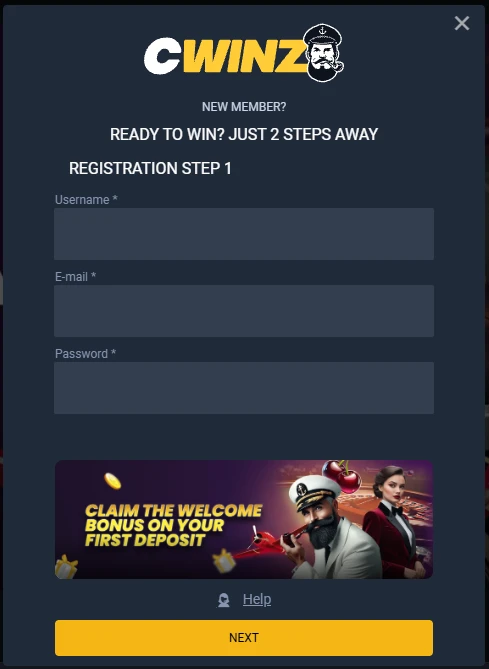
| Field | What to enter | Why it matters |
|---|---|---|
| Username * | A name you will remember. Avoid your full name or phone number, because a username may be visible to others, for example in tournament tables. | You can sign in with it. |
| E-mail * | An address you check and control. Must not already be registered with CWINZ. | You can sign in with it, and password resets go here. |
| Password * | A unique password of 12+ characters that you don't use anywhere else. | Protects your balance. |
Below the fields is a banner reading "Claim the welcome bonus on your first deposit". It is an advert. You don't need to select it to register. Then select the yellow NEXT button. There is also a Help link if you get stuck.
Registration step 2: your personal and contact details
The second screen is titled "Registration step 2":
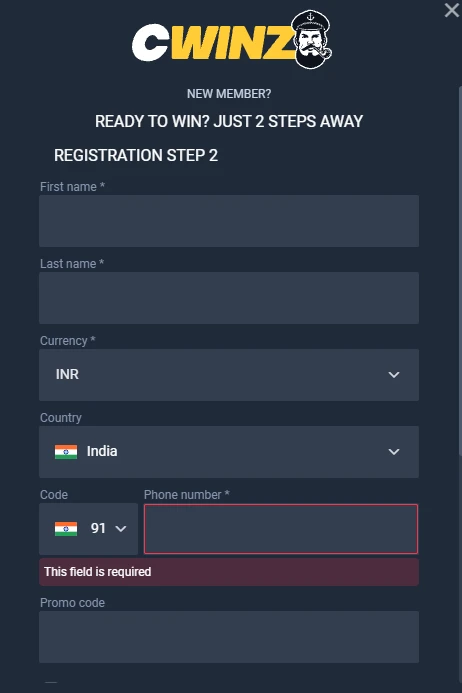
| Field | Required? | What to enter |
|---|---|---|
| First name | Yes | Your legal first name, spelled as on your PAN card, Aadhaar or passport. |
| Last name | Yes | Your legal surname, spelled as on the same ID. |
| Currency | Yes | Shown as INR in the form we saw. Check it before continuing. Currency is usually hard to change later. |
| Country | No | Shown as India. Change it only if you live elsewhere. |
| Code | Pre-filled | Country dialling code, shown as 91 with the Indian flag. |
| Phone number | Yes | Your 10-digit mobile number without the +91 or a leading 0. Leaving it empty shows "This field is required". |
| Promo code | No | Leave it empty unless you have a code from CWINZ itself. Don't use codes from Telegram or WhatsApp. See promotions. |
Date of birth and home address are not asked for in these two steps. Expect to provide them, with documents, during account verification.
At the bottom are the declaration tick box, links to the Privacy Policy and General Terms & Conditions, a Back button that returns you to step 1, and the Register button.
The declaration you accept when you register
Before you select Register, you tick one box that covers several statements. Here they are in plain English:
| You confirm that… | What it means for you |
|---|---|
| You are 18 or older | Under-18s must not register. Age is checked at verification. |
| You play for yourself, with your own money | No accounts for friends or family, and no playing with borrowed or someone else's funds. |
| This is the first e-mail you have registered with CWINZ | One account per person. A second account can be closed. |
| You have not self-excluded from any gambling website in the past 12 months | If you have, don't register. Self-exclusion exists to protect you. |
| All your information is correct and can be verified | Incorrect information voids all winnings. This is why your name must match your ID. |
| CWINZ limits the maximum prizes that can be won and withdrawn per day, week or month | Large wins may be paid out in parts. Check the limits in the terms before you deposit. |
| You have read and accept the Privacy Policy and General Terms & Conditions | Open both links and read them. They govern bonuses, withdrawals and account closure. |
Ticking the box is a legal statement. If any line isn't true for you, stop here rather than registering.
CWINZ registration form errors
| What you see | What to do |
|---|---|
| Red box with "This field is required" | A required (*) field is empty. Fill it in. On step 2 this is often the phone number. |
| Register button does nothing | Check that the declaration box is ticked and every red field is fixed. Scroll down, because the box sits below the promo code. |
| E-mail or username refused | It may already be in use. If you registered before, sign in or reset your password. Don't open a second account. |
| Phone number refused | Enter 10 digits only, with no spaces, +91 or leading 0, and check that the code shows 91. |
| Need to fix step 1 details | Select Back at the bottom of step 2. |
After registration
Once the account exists you can sign in with your e-mail or username and your password. Whether CWINZ also sends an activation e-mail or SMS code is still to be checked. Before your first withdrawal, expect to complete identity verification (KYC). Our "KYC Policies" document, linked in the footer, explains the rules. Doing verification early avoids delays later.
Next steps most people take: set deposit and time limits, read the promotion terms before opting in, and learn how deposits work.
Registration mistakes to avoid
- Using a nickname or someone else's name in step 2. Under the declaration, incorrect details void winnings.
- Changing the currency away from INR by accident. It is usually hard to change later.
- Typing a promo code found on Telegram, WhatsApp or an old listing.
- Registering through a link from a stranger or an unofficial "agent".
- Ticking the declaration without opening the Terms & Conditions, especially the prize and withdrawal limits.
- Creating a second account after a lockout. Contact support instead.
Already registered? Read how to sign in to CWINZ.